All students log into Sumdog with their own username and password.
You can find their username and passwords on your teacher account, as well as print or export them to share with your students, parents or other teachers.
You will need to be assigned to a class before you can view the login details for that class. Click here for instructions on assigning yourself to a class.
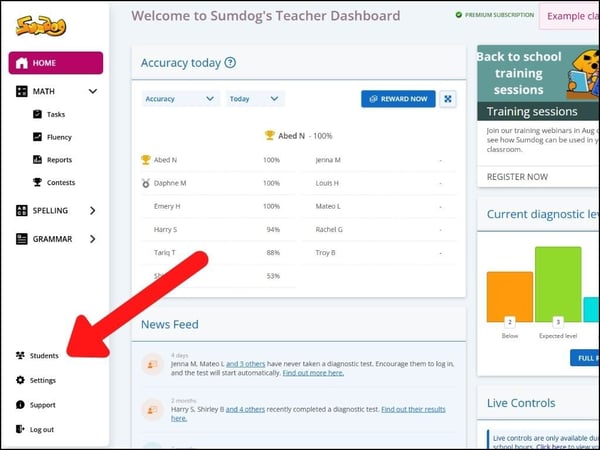
- Select "students" (or pupils) from the sidebar on the left of your dashboard.
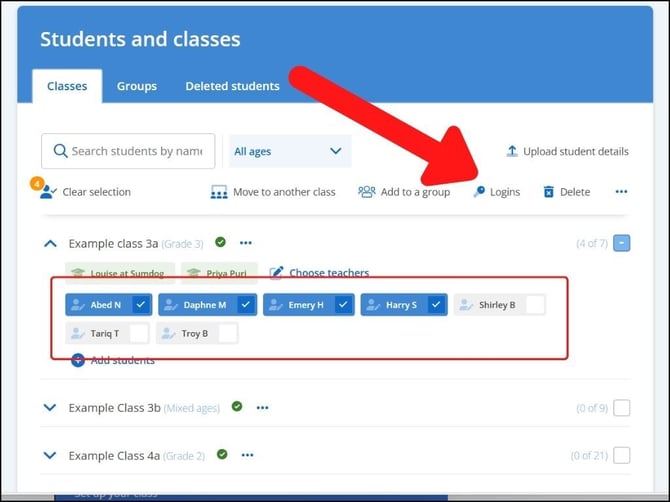
- Select the students you'd like to change the username or password, or use the checkbox next to a class name if you'd like to view the whole class. Then click 'logins'.
- On this page you'll be able to see the login details for the class that was selected on your Dashboard. By default you will be shown the students' passwords, but your students can also sign in using QR codes. If you would like to view and print their QR codes, select the tab 'QR code' or 'Password and QR code'
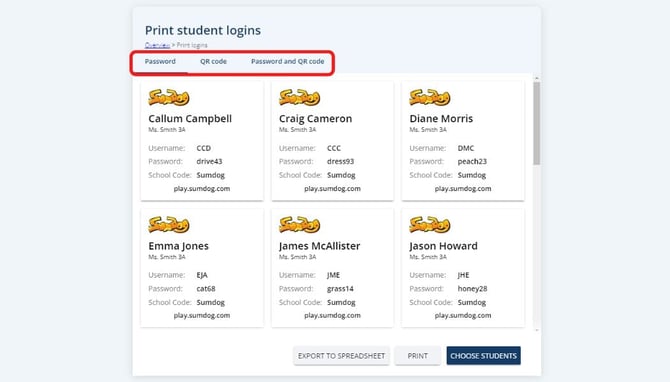
- Click 'print' to print the login details for your selected class or 'export to spreadsheet' to create a spreadsheet of each student's account details (first name, last name, class, year level, username, password).
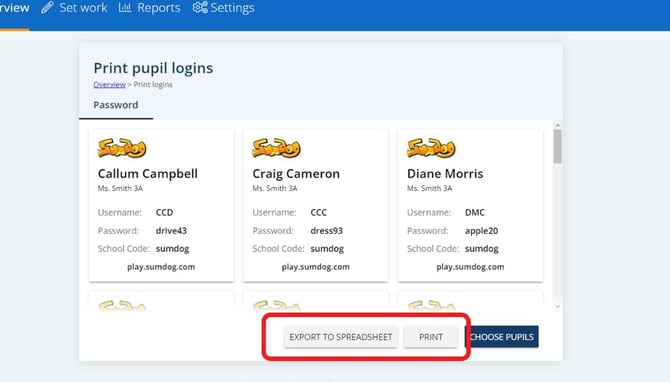
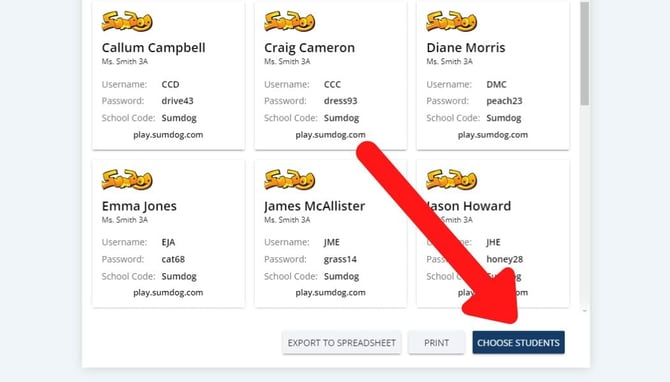
- You can change the student selection by clicking 'choose students'
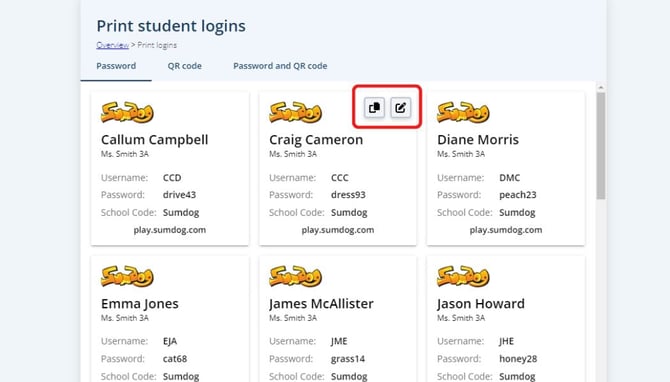
Tip: When you hover over the login card for a particular student, two icons will appear. You can click the copy icon on the left to copy the login details and the edit icon on the right to edit the username or password for that student.