
Please note: changing a student's password will also change their QR code
Select the option you would like to read more about
Option 1: Editing the username or password for an individual student
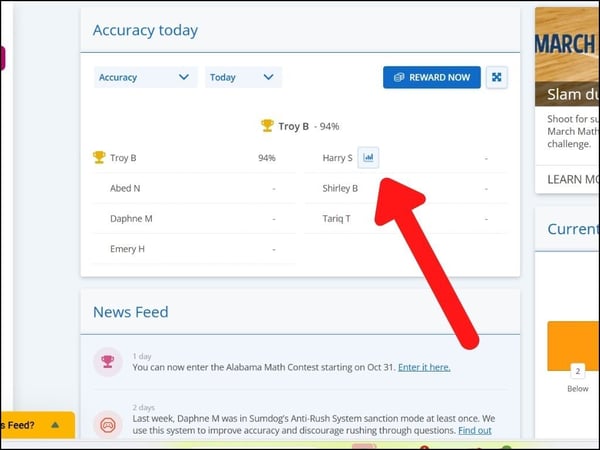
- Select the correct class at the top right of your teacher dashboard. On your class leaderboard hover over the student’s name and click the report icon to edit login details.
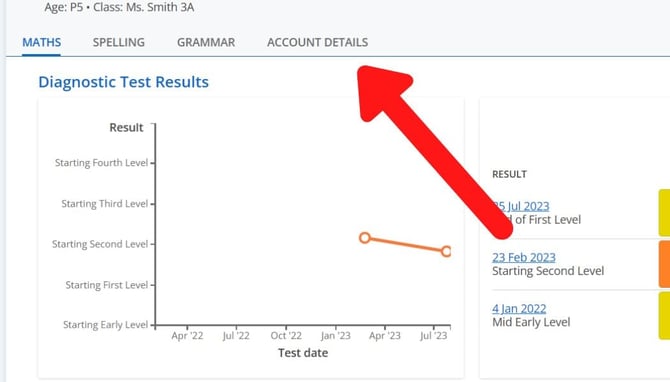
- Click account details
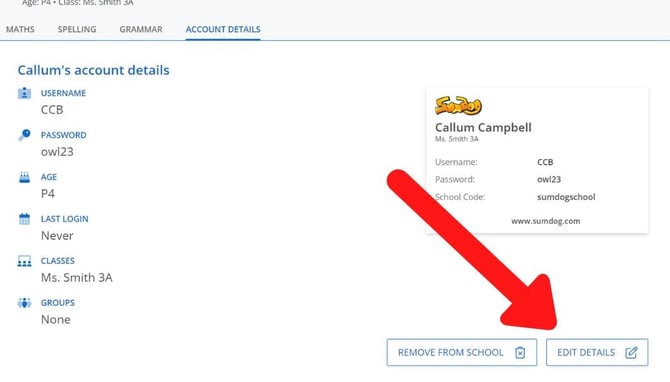
- Click edit details
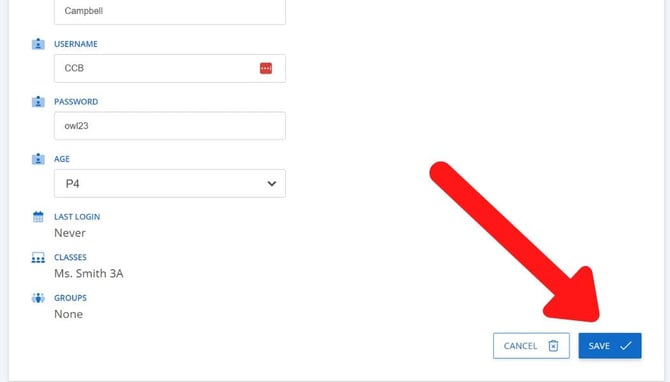
- Type in the new username and/or password into the text box, and click save.
Option 2: Editing the username and password for multiple students
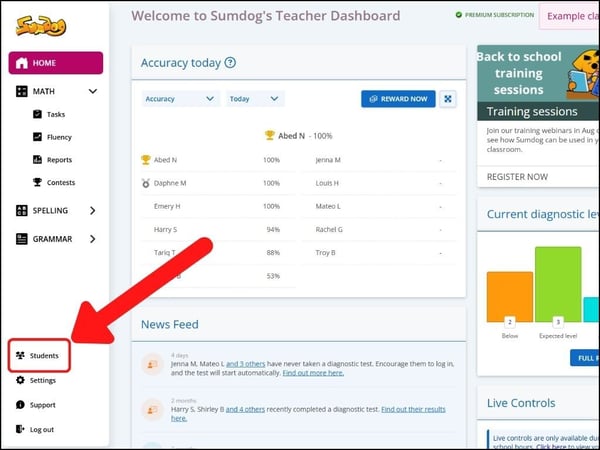
- Select "students" (or pupils) in the sidebar on the left of your dashboard.
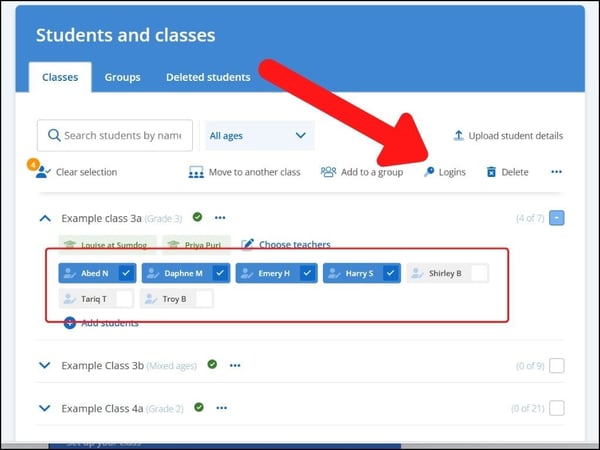
- Select the students you'd like to change the username or password for and click 'logins'.
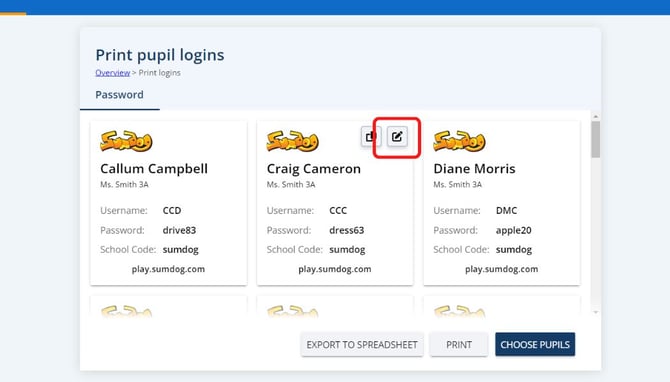
- On this page, you'll be able to see the login cards for each student in the selected class. Click the edit icon for a student you want to change the login details for
- Type in the new username or password, and click the 'save' icon to save the changes
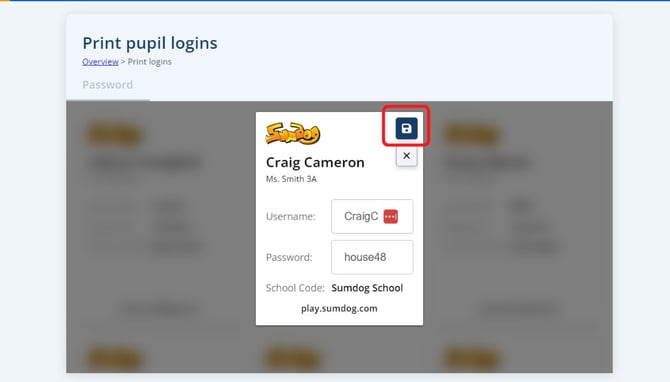
- Repeat for any other students you'd like to edit the login details for
Option 3: Editing login details for multiple students by uploading a spreadsheet
If you need to change the login details for all the students in your class, you can do so by uploading a spreadsheet on the Class Roster page.
You can find detailed instructions on uploading a spreadsheet here. Make sure to keep all information in the spreadsheet the same as it is on Sumdog, other than the new username and/or password! This prevents duplicate accounts being created.