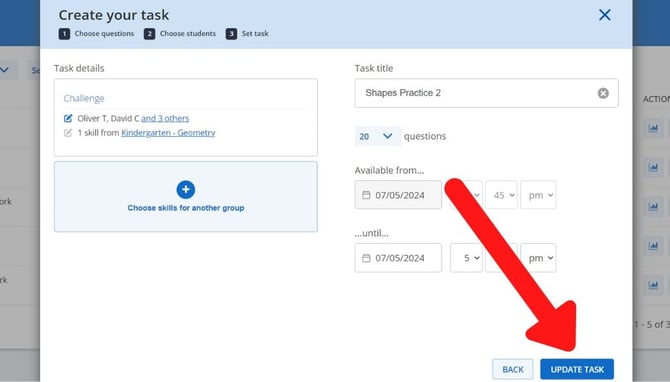
Select which option you'd like to read more about:
How to set a practice task
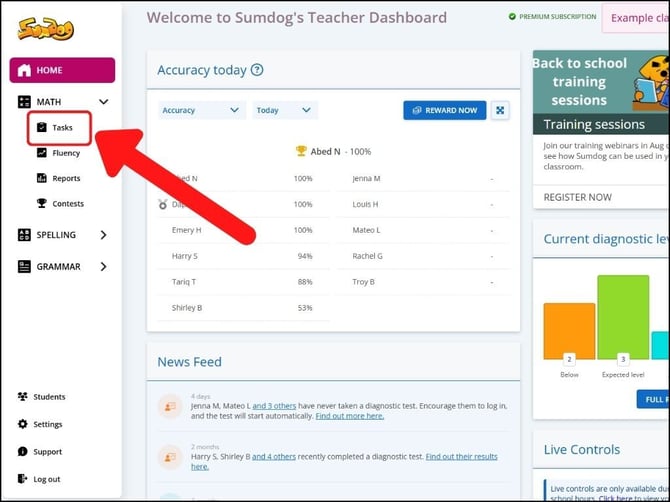
- Click "Tasks" on the navigation bar on the left side of your dashboard under the relevant subject.
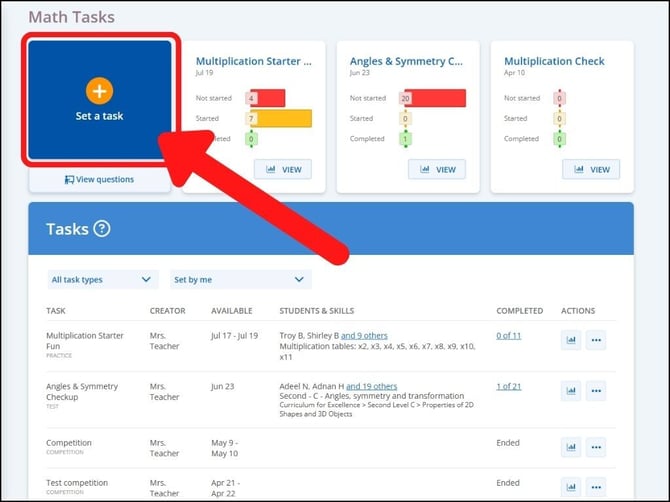
- Click 'set a task'
- Click the box that says 'practice', then click 'next'
.png?width=655&height=374&name=Set%20work%20(16).png)
- First you will select the students you'd like to include in your task. Click on the arrow next to a class to show all the students in that class.
Click on the box next to a student to select that student. Alternatively, you can click on the box next to a class to select all the students within that class.
Once you've selected all the students you'd like to include, click 'next'.png?width=655&height=374&name=Set%20work%20(17).png)
TIP: By default, your own classes will be displayed. To view other classes in your school, click on the 'My groups' tab..png?width=458&height=262&name=Set%20work%20(18).png)
- Now you will select the skills you'd like to include in your task. First, click 'choose level' and select a grade level from the dropdown menu
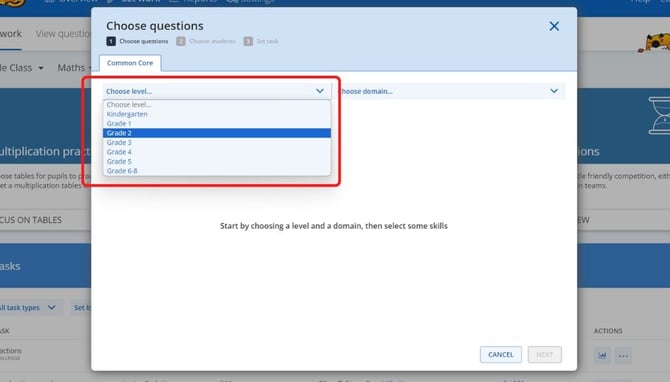
- Click 'choose domain' and select a topic from the dropdown menu
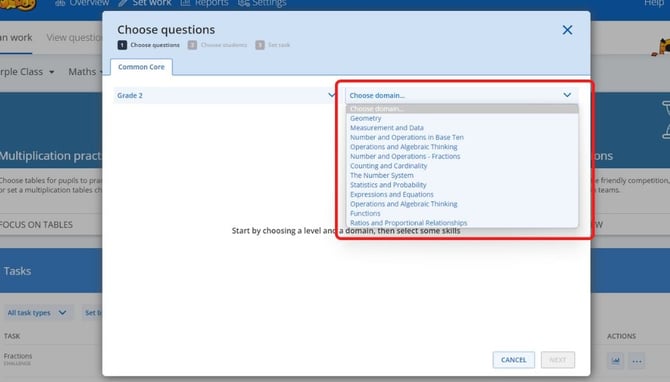
- You can find a skill by typing the name of the skill in the search bar or by browsing. To browse skills, click the arrow next to a domain to expand it into smaller subcategories
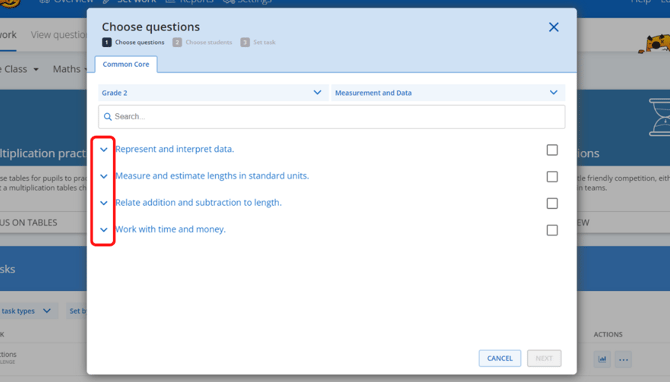
- Click on the box next to a skill to select that skill. Please note, clicking a box next to a domain will select all the skills in that domain.
Once you've selected the skills you'd like to include in your task, click 'next'.jpg?width=670&height=383&name=skills%20tick%20box%20(2).jpg)
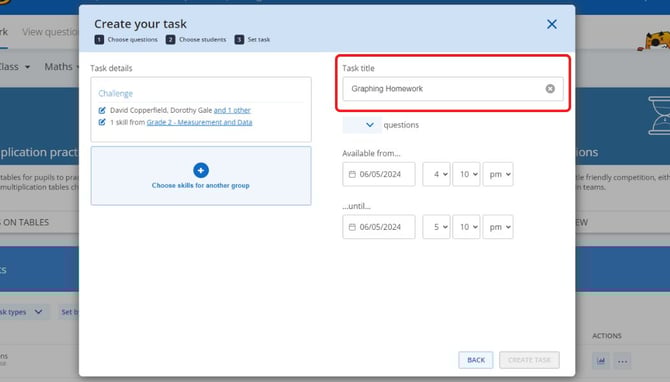
- Create the settings for your task:
- Task Title – Give your task a title. Your students will see this title on their account and it will help them identify the activity in their Tasks list.
- Questions – Choose the number of questions for your practice task or set a correct answer target.
- Available from...until... This will be the period during which the task will be visible on the student's account.
How to view and edit an existing practice task
- Click "Tasks" on the navigation bar on the left side of your dashboard under the relevant subject.
- Scroll down to the Tasks list.
NOTE: by default, only the tasks you yourself have set will be shown. You can view tasks set by other teachers by clicking 'set by me' and selecting 'set by anyone' or a different teacher from the dropdown menu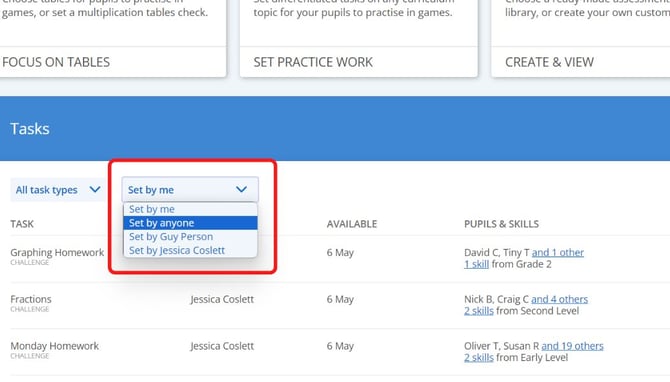
- To view the results of a practice task, click the report icon next to the task you'd like to view. You'll then be taken to the report for that task. You can find guidance for interpreting a practice task report here.
If you'd like to instead edit a practice task, skip to step 5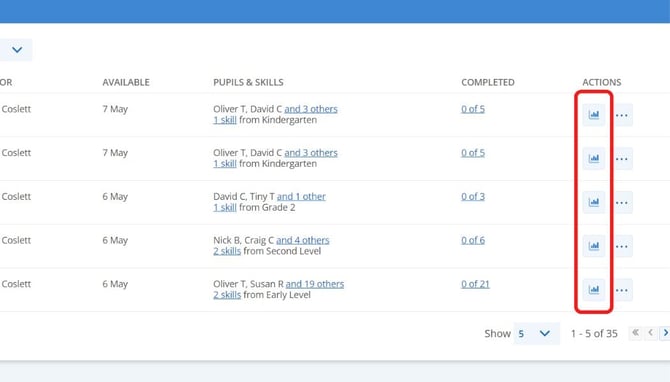
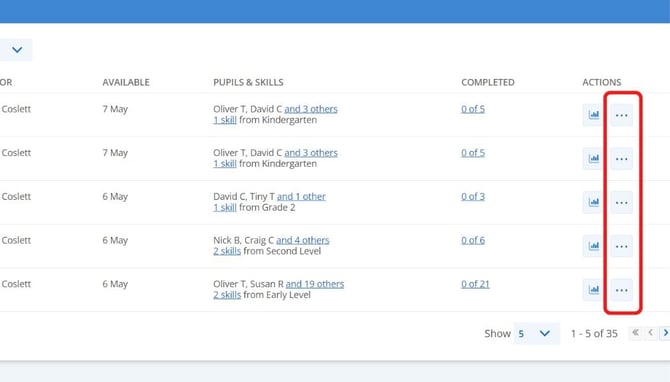
- To edit a practice task, click on the three dots next to the task you'd like to edit.
- Click 'edit'.
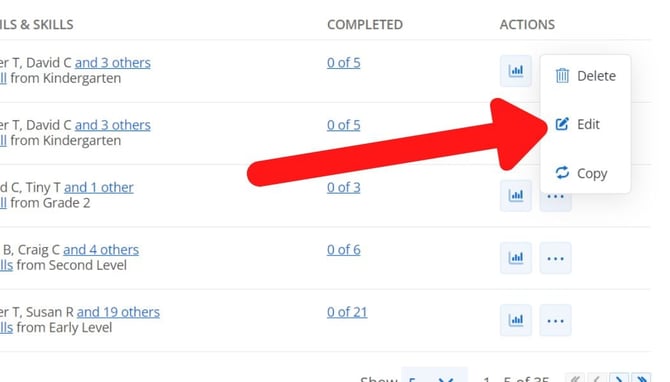
- You will be taken back to the Create Your Task page, where you can change the title, the question target, the time the task will be available until, and the students included.
Click 'update task' to save your edits