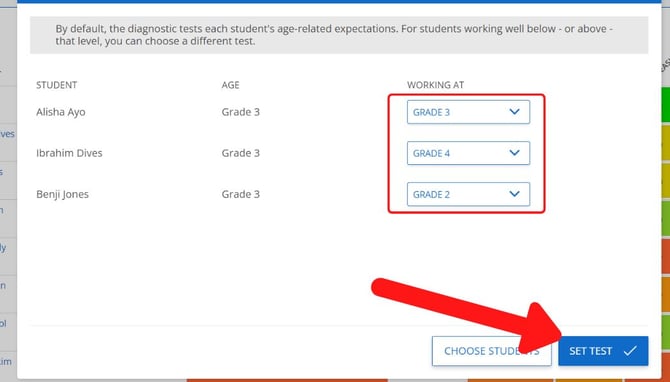
By default, students start with questions matched to their age. You can use the steps below to set a different starting level for the diagnostic if needed, such as for students working below their age group.
Resetting the diagnostic test
- Click "Reports" under math
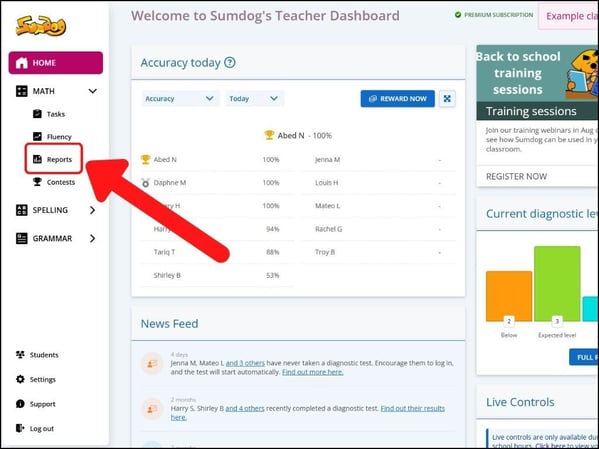
- You'll see an overview of your class' diagnostic results. Click "Detailed Results" to dive deeper and reset tests.
To view another class, use the class drop down in the top right corner..jpg?width=670&height=503&name=Support_DiagnosticResults%20(2).jpg)
- Click "Detailed Results" again as shown below
.jpg?width=670&height=503&name=CX%20Knowledge%20Base%20Images%20(6).jpg)
- You'll then see data for each child. This is where you can use the refresh icon next to each child's name to reset the test.
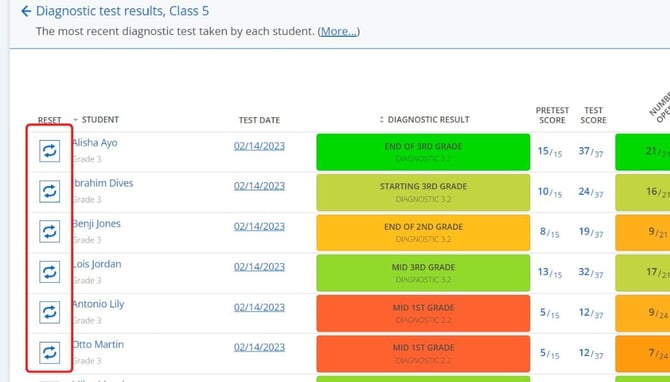
- When you click the reset arrows next to a student's name, a window will open with the selected student highlighted. To reset for the whole class, check the class box; to reset for individuals, check their names. Click 'next' to continue
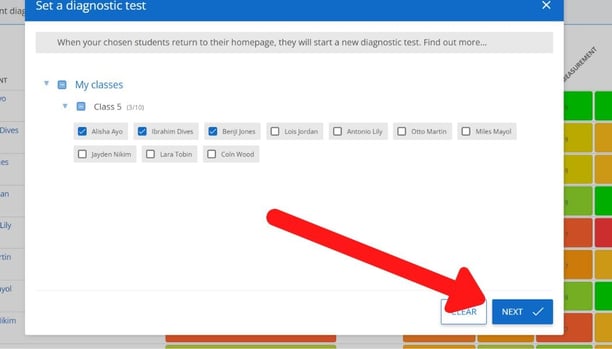
6. Optional next step: Choose a different starting point
If you’d like to customize the diagnostic (for example, if a student is working below level and may be put off by a too difficult pretest), use the dropdown menu on the right and select the grade you would like the diagnostic to be set at.
7. Click 'set test'. The diagnostic will then appear on the select student(s) dashboard.