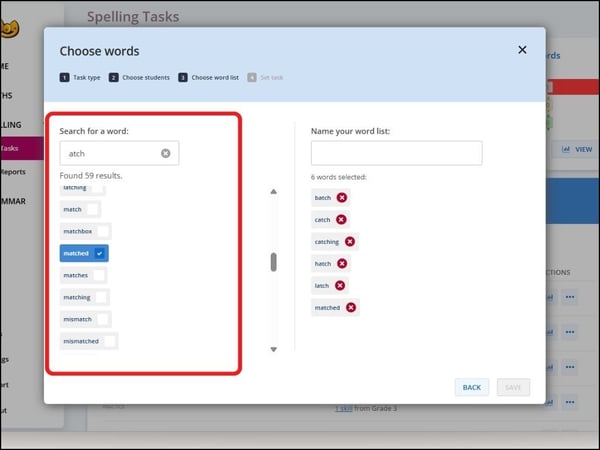
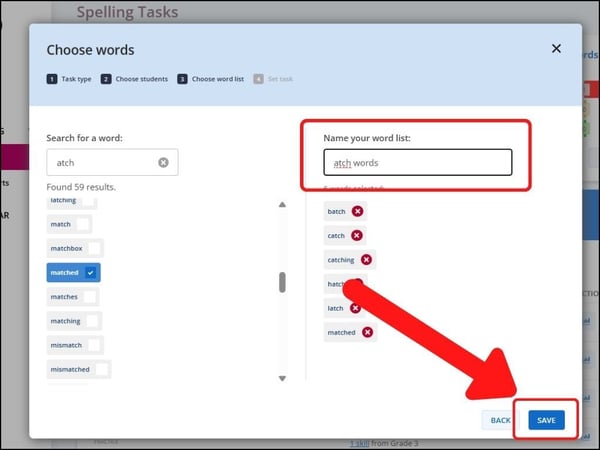
If you chose to create a new list, you can search for words to select them. Simply type a word into the search box—if it’s available in Sumdog’s system, it will appear below for you to add. Keep adding words until your list is complete; we recommend at least 10 words to ensure enough practice for your students. Once you’re happy with your selections, give your word list a clear, descriptive name so you and your colleagues can easily find it later. Finally, click "save" to finish creating the list. Your custom list will then be available to assign to students or reuse in future tasks.
When creating a Custom word list you choose words that your students will practice whilst playing Sumdog games. We recommend setting at least 10 words in each list. This is because, on average, students will answer 10 questions within a game.
Choose which topic you'd like to read more about:
How to create a new Custom Word List
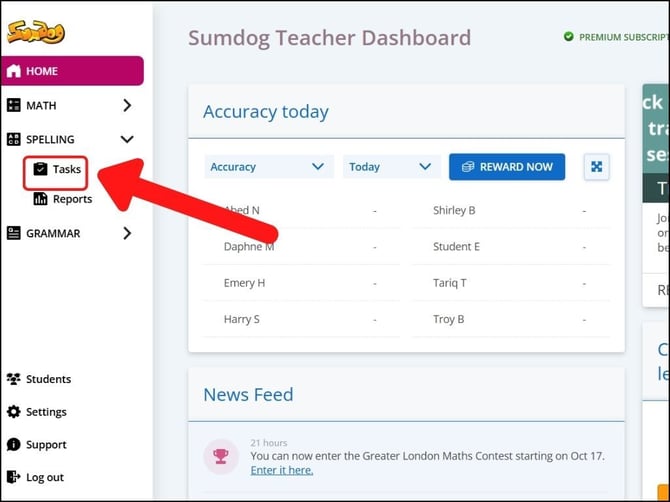
- Click "Spelling" then "Tasks" in the sidebar on the left of your dashboard.
- Click "set a task"
-1.png?width=655&height=374&name=Set%20work%20(30)-1.png)
- Click the box that says "practice", then click "next".
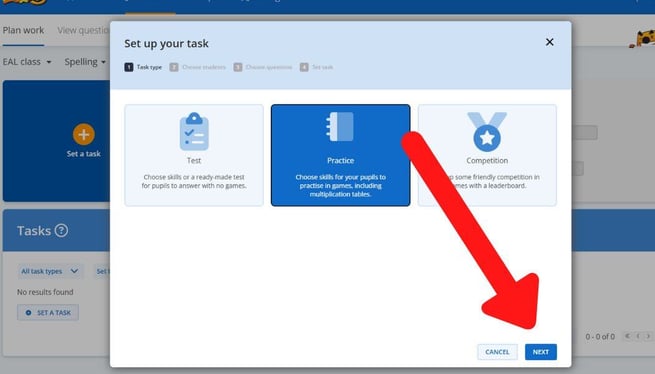
- Choose "Select your own words for the task" and click "next".
.png?width=655&height=374&name=Set%20work%20(31).png)
- Choose the students you'd like to include in the task and click "next"
.png?width=655&height=374&name=Set%20work%20(32).png)
- Type in a spelling word in the search box. If the word is in our system, it will appear below the search box. Click a word to add it to your list.
-
You can create a new word list or use an existing one, including lists made by other teachers. Both options are highlighted in the image below.
Click the three dots next to an existing list to edit, copy, or delete lists. This makes it easy to customise or share lists with your team.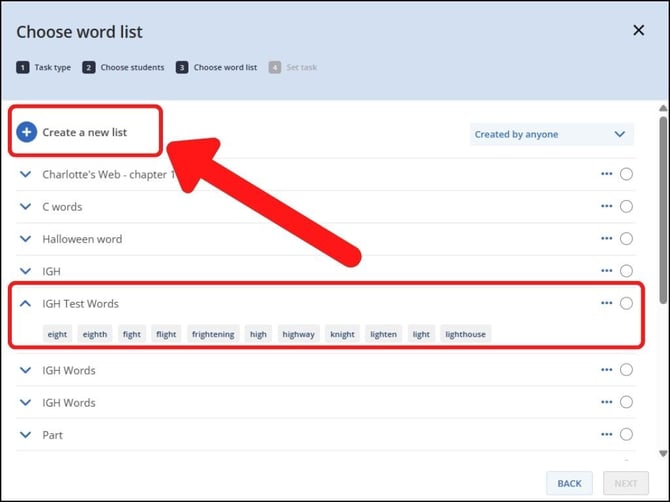
- If you chose to create a new list, you can search for words to select them - if it’s available in Sumdog’s system, it will appear below for you to add. Keep adding words until you’re happy with your selections, then give it a clear, descriptive name so you and your colleagues can easily find it later. Finally, click "save" to finish creating the list.
How to view and edit an existing Custom Word List task
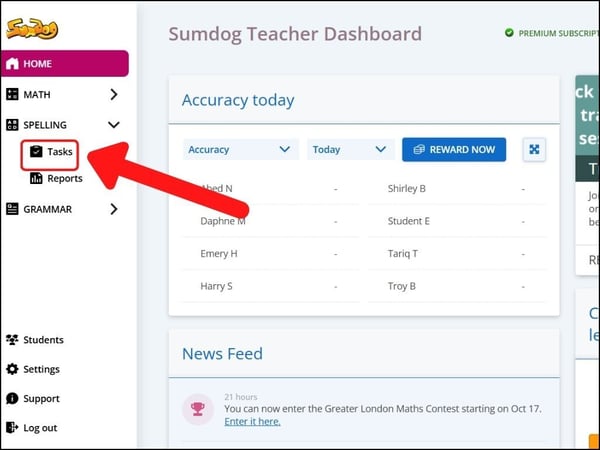
- Click "Spelling" then "Tasks" in the sidebar on the left of your dashboard.
By default, you’ll only see your own tasks. To view others, select "set by anyone" or choose a teacher from the dropdown.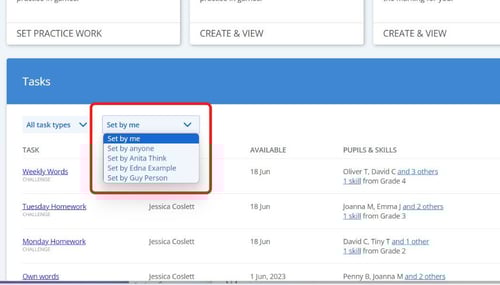
- To view the results of your task, click the report icon next to the task you'd like to view. You'll then be taken to the report for that task.
If you'd like to instead edit a practice task, move on to the next step.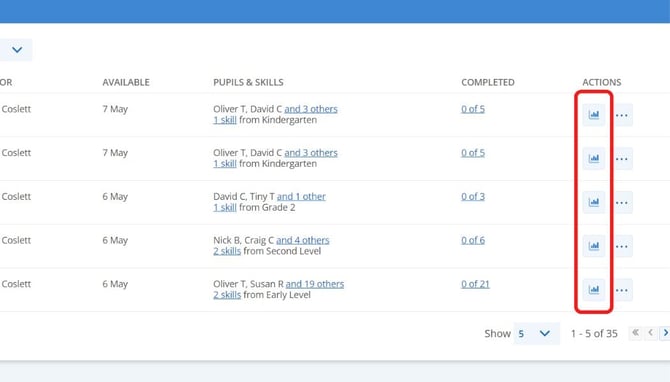
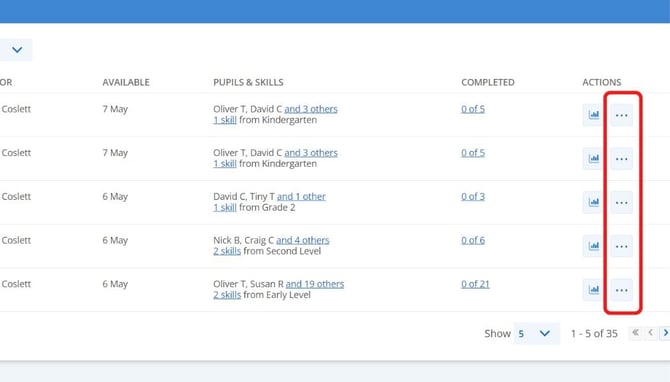
- To edit your task, click on the three dots next to the task you'd like to edit.
- Click "edit".
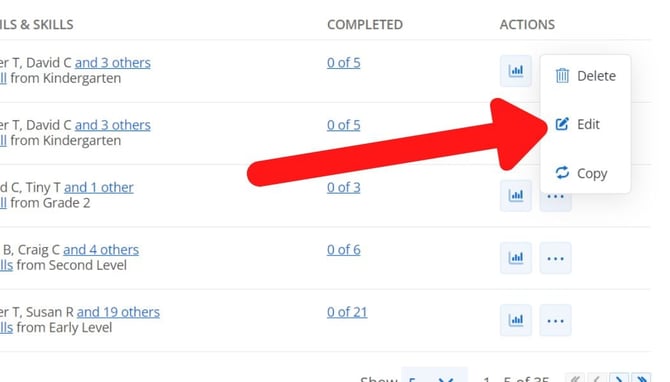
- You will be taken back to the Create Your Task page, where you can change the title, the question target, the time the task will be available until, and the students included.
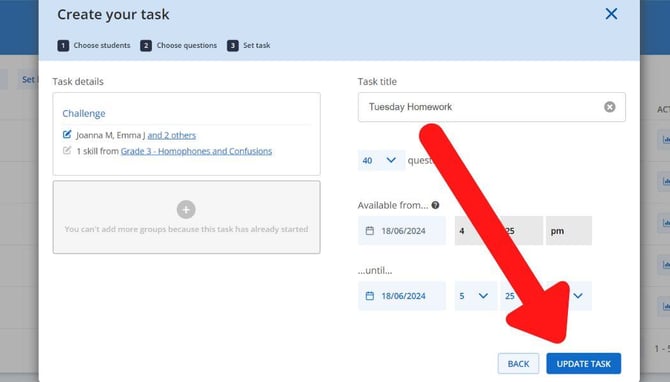
Click "update task" to save your edits.