How to create a multiplication tables practice task
- Go into Set Work from your Teacher Dashboard
- Click ‘set a task’
.png?width=655&height=374&name=Set%20work%20(15).png)
- Click the box that says 'practice', then click 'next'
.png?width=655&height=374&name=Set%20work%20(16).png)
- First you will select the students you'd like to include in your task. Click on the arrow next to a class to show all the students in that class.
Click on the box next to a student to select that student. Alternatively, you can click on the box next to a class to select all the students within that class.
Once you've selected all the students you'd like to include, click 'next'.png?width=655&height=374&name=Set%20work%20(22).png)
TIP: By default, your own classes will be displayed. To view other classes in your school, click on the 'My groups' tab..png?width=458&height=262&name=Set%20work%20(18).png)
- Choose the curriculum then click 'next'
.png?width=655&height=374&name=Set%20work%20(24).png)
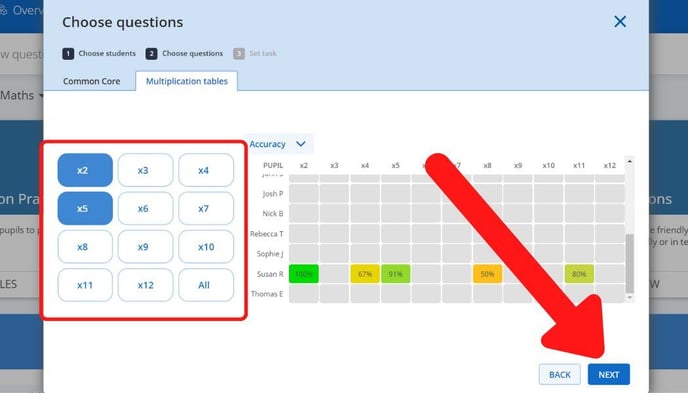
- Select the times tables you'd like to include from the options on the left. Click 'next'
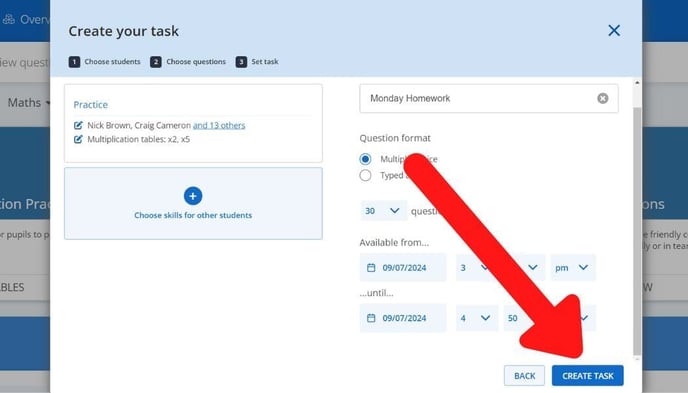
- Create the settings for your task:
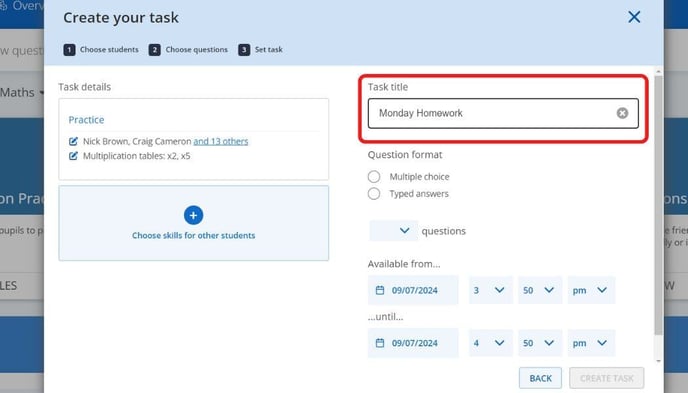
- Task Title – Give your task a title. Your students will see this title on their account and it will help them identify the activity in their Tasks list.
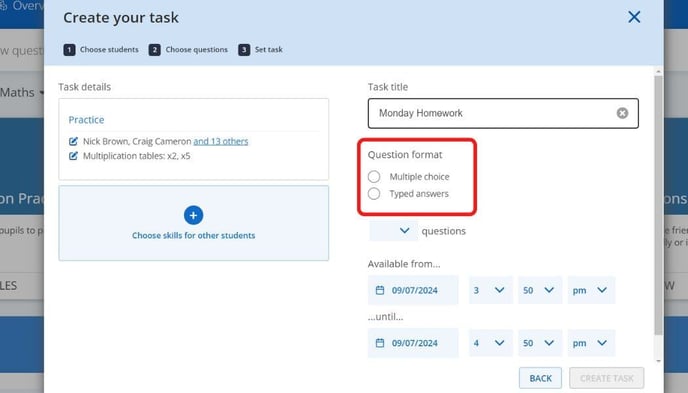
- Question format -- choose whether you'd like students to answer questions in a multiple choice format or by typing their answer into a text box
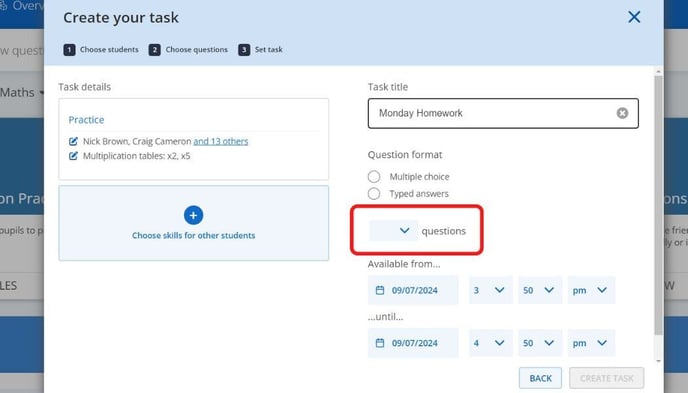
- Questions – Set the number of questions you would like your students to be asked in the task
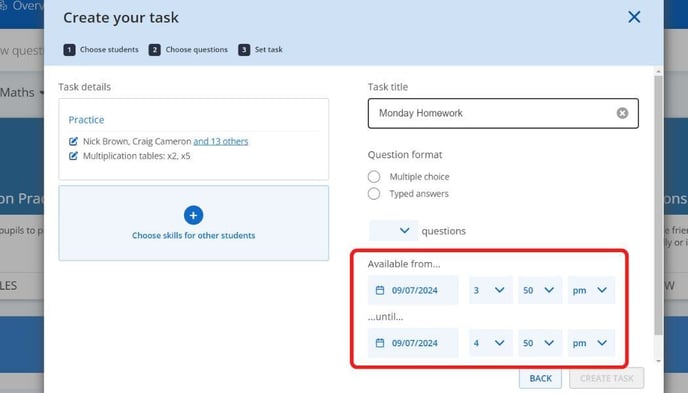
- Available from...until... – This will be the period during which the task will be visible on the student's account.
- Task Title – Give your task a title. Your students will see this title on their account and it will help them identify the activity in their Tasks list.
- Click ‘create task’