
Select which option you'd like to read more about:
- What are Sumdog Tests?
- How to create a test
- How to view the results of a test
- How to edit a test you've set previously
If you're looking for spelling & grammar tests, click here instead.
What are Sumdog Tests?
When a student takes a test on Sumdog, they answer questions outside the games, similar to a paper test. Results are sent to you straightaway and can be shared or printed. Tests can be repeated to track progress and shared with other class teachers. Students can pause and resume within your set time limit.How to create a test
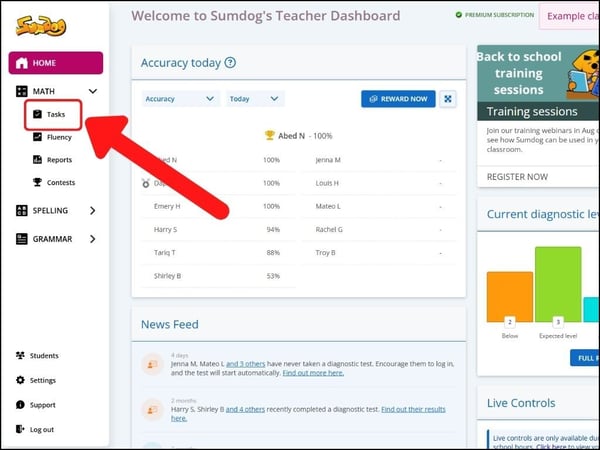
- Click "Tasks" on the navigation bar on the left side of your dashboard
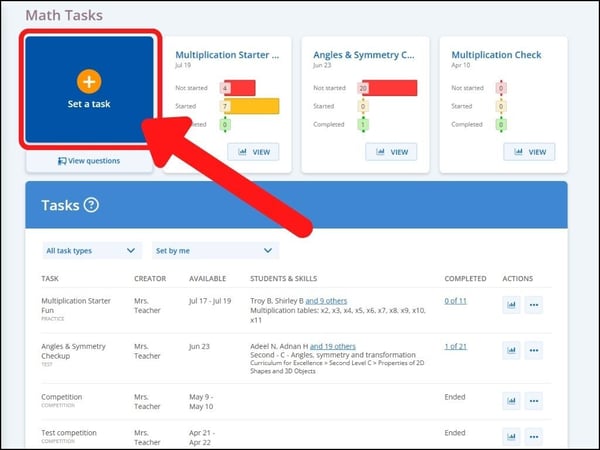
- Click 'set a task'
- Click the box that says 'test', then click 'next'
.png?width=655&height=374&name=Set%20work%20(19).png)
- Select whether you would like to set a test from our ready-made tests ('choose a ready made test') or if you would like to create a custom test by choosing the skills yourself ('create a custom test').
Click 'next'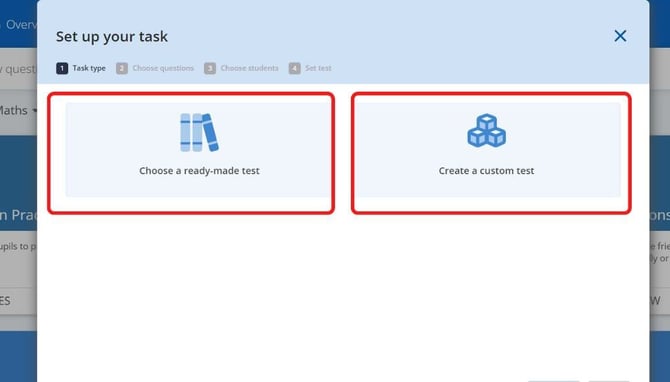
- If you are setting a custom test, move on to Step 6.
If you are setting a ready-made test, you will now be prompted to select a test. You can use the blue arrows next to a year level to show all the tests available in that year level.
Click 'next'. You can now move on to Step 8 in these instructions.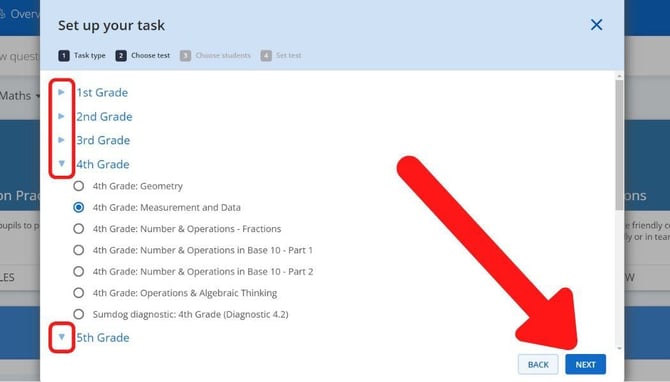
Tip: Some ready-made tasks have the option for students to type in their answers instead of select from multiple choice answers. If a test has typed answers as an option, you'll see a keyboard next to the test title.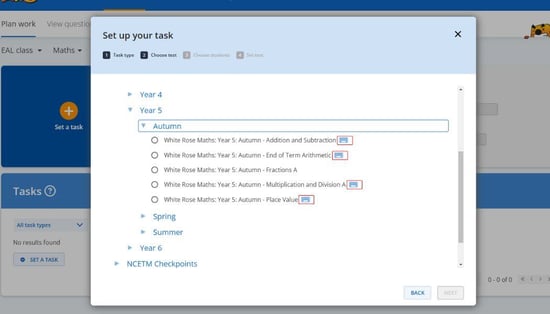
Please note that questions with typed answers do no come with audio. If you have pupils who require audio, do not select this option. - Choose how many questions you would like to include in the test by selecting a number from the dropdown menu.
Click 'next'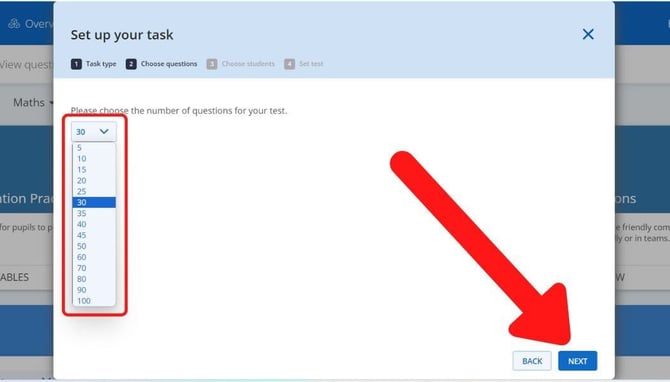
- Now you will select the skills you'd like to include in your task. You can either use the search bar on the right or filter skills by selecting a year level and a domain.
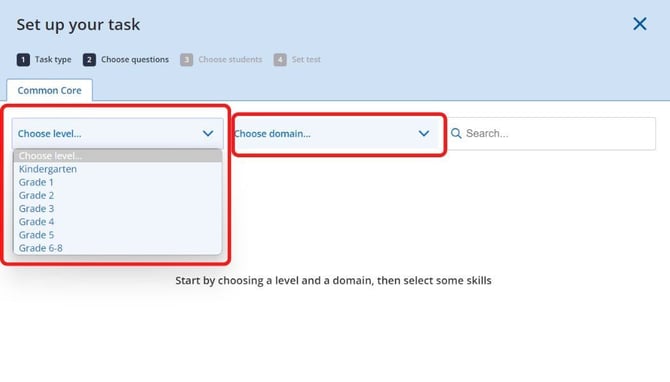
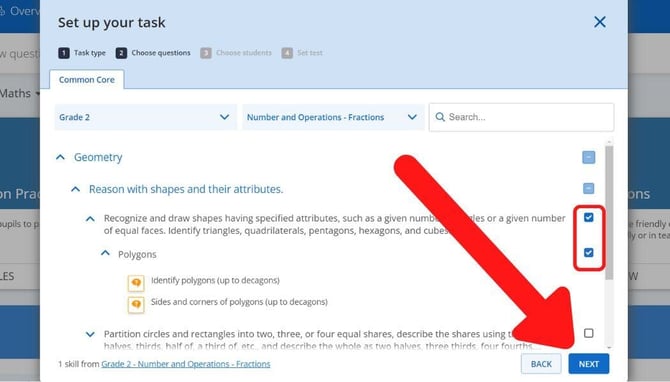
- Select the skill or skills you'd like to include, and click 'next'
- You will now see a preview of all the questions that will be included in your test. If you'd like to replace any question with a new one, click the 'refresh' icon on the left above the question
Once you're happy with the questions that will be included, click 'next'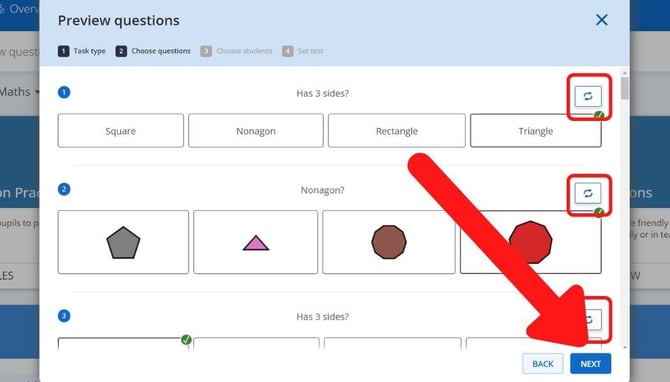
- You will now choose the students for your test. Click on the arrow next to a class to show all the students in that class.
Click on the box next to a student to select that student. Alternatively, you can click on the box next to a class to select all the students within that class.
Once you've selected all the students you'd like to include, click 'next'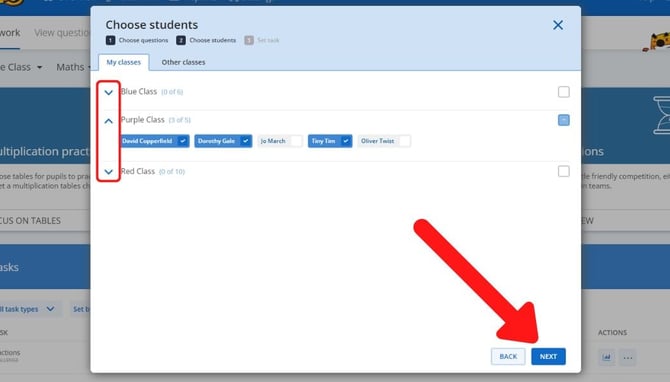
TIP: By default, your own classes will be displayed. To view other classes in your school, click on the 'other classes' tab.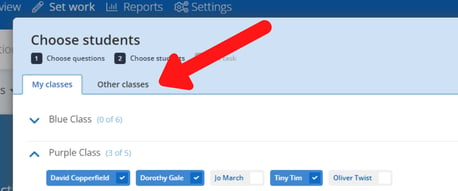
- Create the settings for your test:
- Task Title – Give your task a title. Your students will see this title on their account and it will help them identify the activity in their Tasks list.
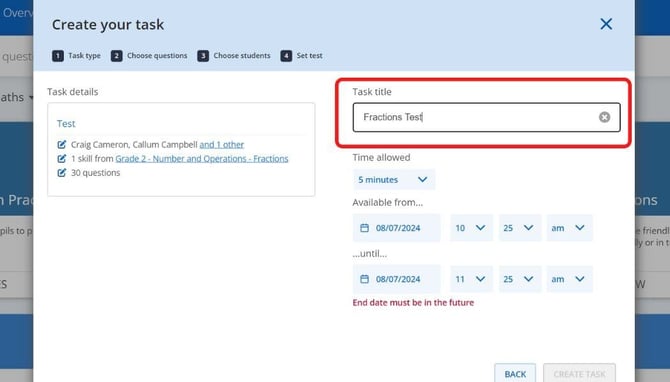
- Time allowed – This is how much time your students will have to complete the test once they have started it.
.jpg?width=670&height=383&name=test%20time%20allowed%20(2).jpg)
- Available from... ...Available until... – This will be the period during which the test will be visible on the student’s account.
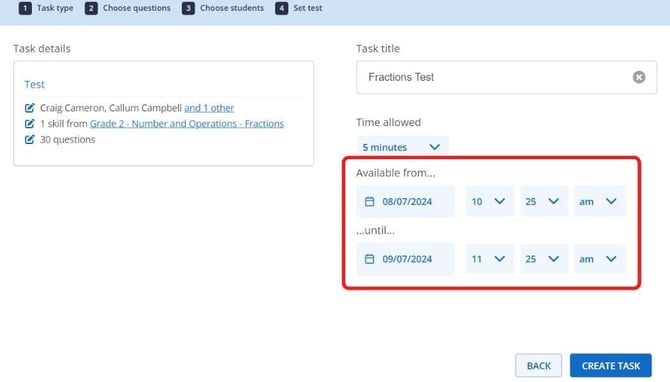
- Task Title – Give your task a title. Your students will see this title on their account and it will help them identify the activity in their Tasks list.
- Click 'create task'
.jpg?width=670&height=383&name=create%20task%20(test).jpg)
How to view the results of a test
- Click "Tasks" on the navigation bar on the left side of your dashboard under the relevant subject.
NOTE: by default, only the tasks you yourself have set will be shown. You can view tasks set by other teachers by clicking 'set by me' and selecting 'set by anyone' or a different teacher from the dropdown menu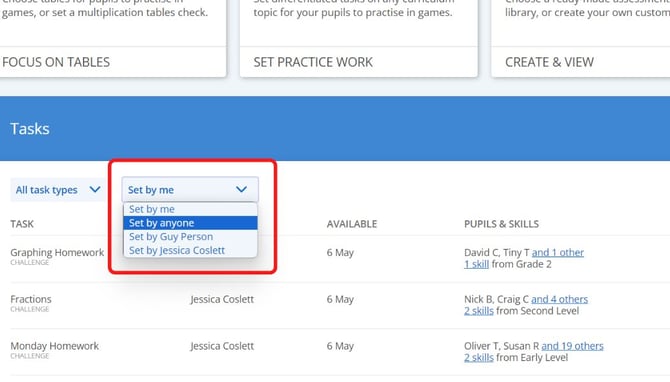
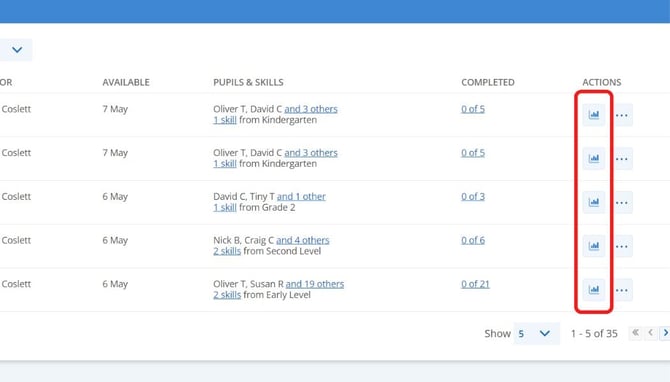
- To view the results of a test, click the report icon next to the task you'd like to view. You'll then be taken to the report for that task.
-
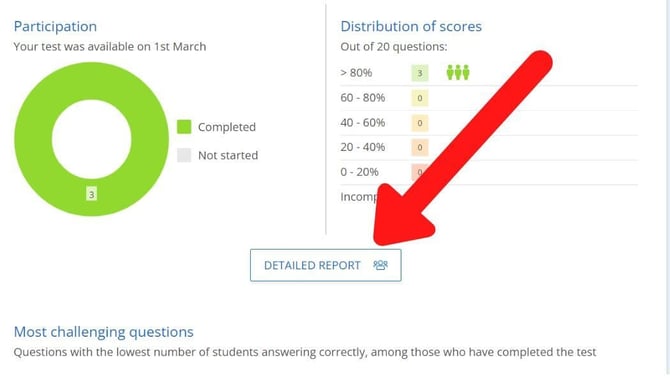
Click ‘detailed report’ to view individual student results.
-
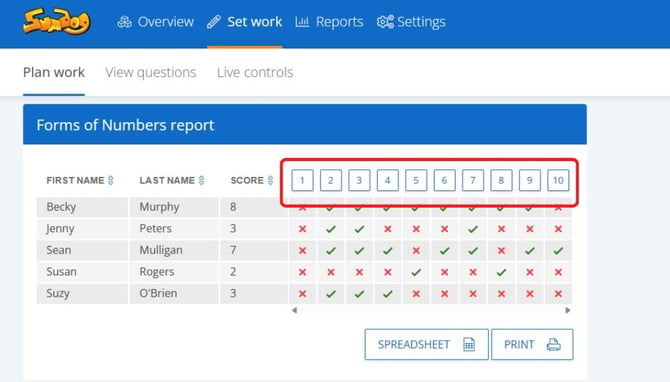
On this page you'll be able to see each student's individual answers. A dash in the result means that the student ran out of time and couldn't finish the question. Click on the question number to see what each student answered for that question.
How to edit a test you've set previously
- Click "Tasks" on the navigation bar on the left side of your dashboard
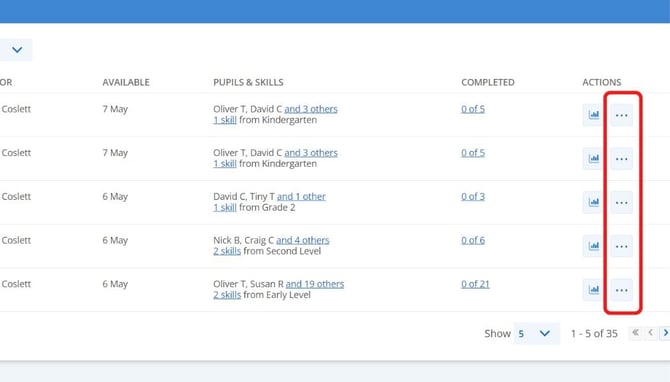
NOTE: by default, only the tasks you yourself have set will be shown. You can view tasks set by other teachers by clicking 'set by me' and selecting 'set by anyone' or a different teacher from the dropdown menu - Click on the three dots next to the task you'd like to edit.
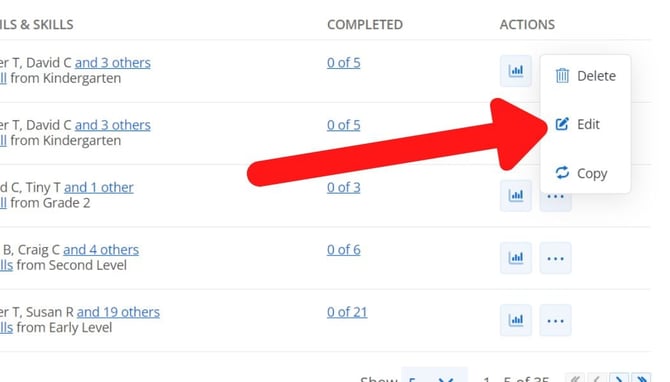
- Click 'edit'.
- You will be taken back to the Create Your Task page, where you can change the title, the question target, the time the task will be available until, and the students included.
Click 'update task' to save your edits.jpg?width=670&height=383&name=update%20task%20(test).jpg)