
How to repeat the same test
- Select "Tasks" from the sidebar on the left side of your dashboard
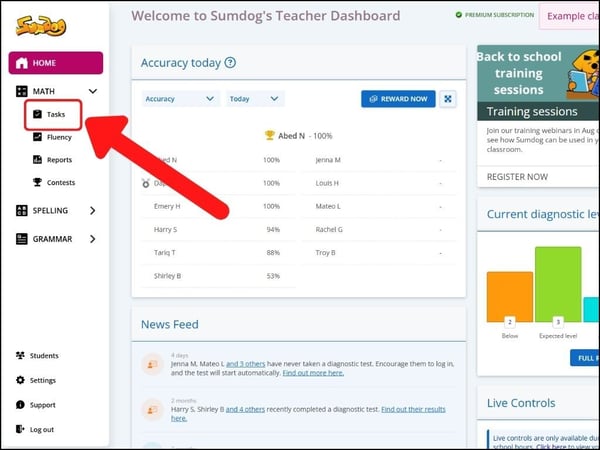
- Next to your chosen test, click the three dots to access more options
.jpg?width=600&height=343&name=Set%20work%20(26).jpg)
- Click 'repeat' to set up the test again
.jpg?width=600&height=343&name=Set%20work%20(27).jpg)
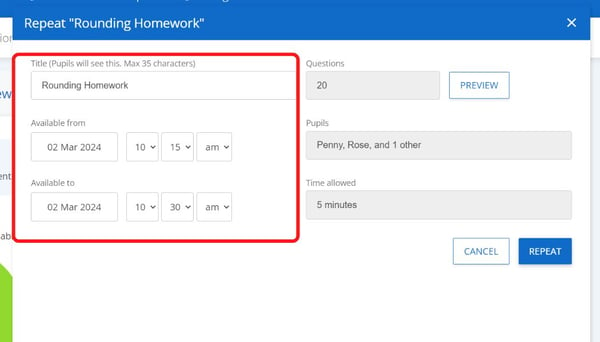
- Choose the title and the date/time you'd like your students to sit the test again. The number of questions, pupils included, and time allowed cannot be changed. The number of questions, included pupils, and time limit will stay the same and can't be changed to ensure fair comparison between the two attempts.
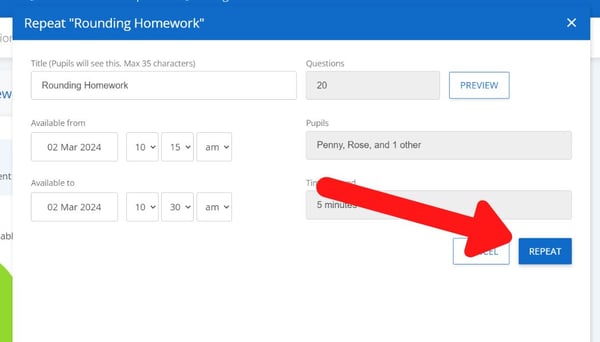
- Click 'repeat' and your test is ready!
View results & track progress
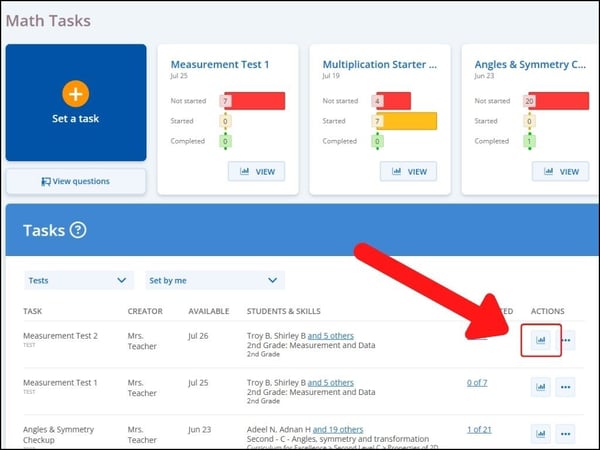
- Once the test has been completed, head back into the tasks section to see the results. Click the report icon next to the repeated test:
- In the middle of the report is the 'change over time' section (see image below) where you'll see:
- Each student’s correct answers from the first and second tests
- The overall improvement between attempts
A clear picture of progress in action!
.jpg?width=670&height=383&name=change%20over%20time%20(2).jpg)