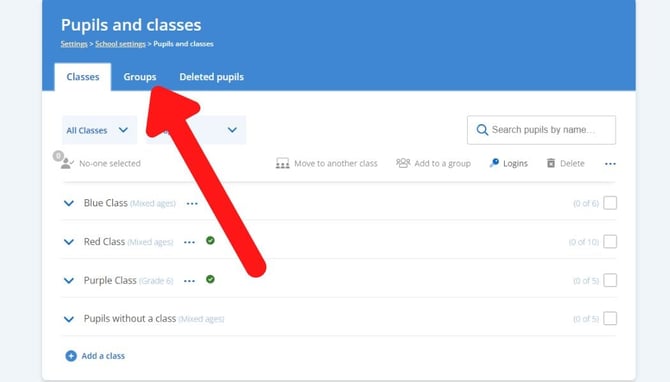
Once created, you can switch between all your groups and classes on the teacher dashboard. Here's how to create them:
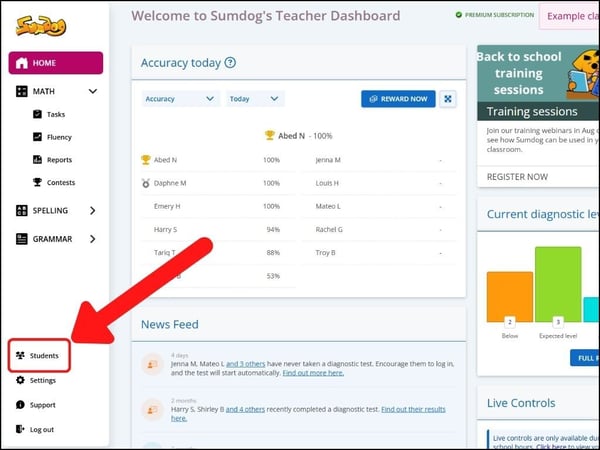
- Select "students" (or pupils) from the sidebar on the left of your dashboard.
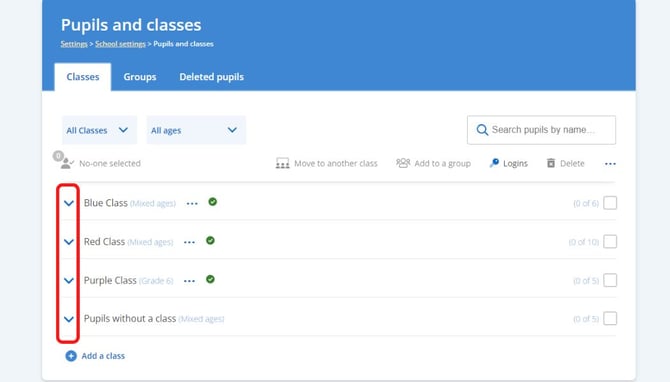
- Click the blue arrow next to a class to see all the students in that class
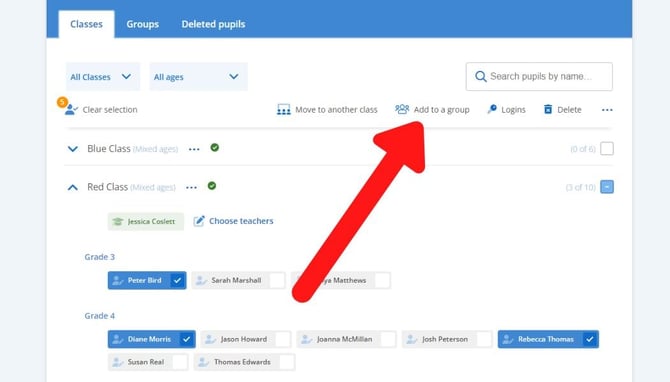
- Select and deselect students by clicking the box next to a student's name. Once you've selected all the students you'd like to add to your group, click 'add to a group'
- If you'd like to add your students to an already existing group, select the group and click 'add students'. This is your last step.
If you would like to create a new group, continue with the following steps.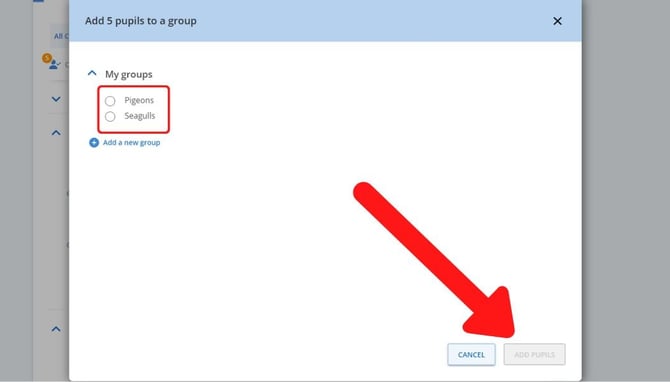
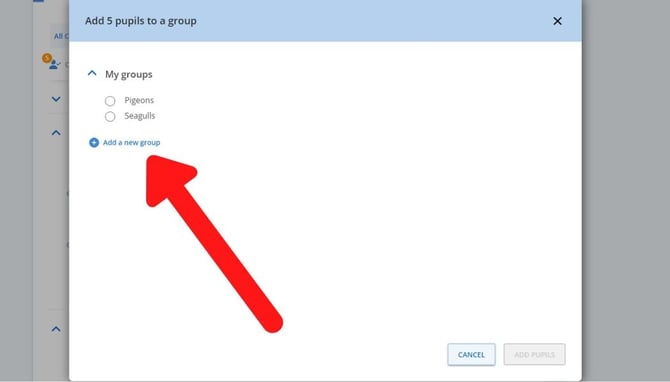
- Click 'add a new group'
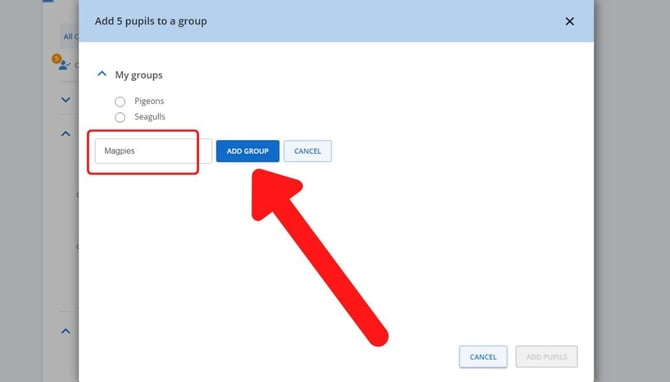
- Type in the name of the group you'd like to create and click 'add group'
- Click 'add students'
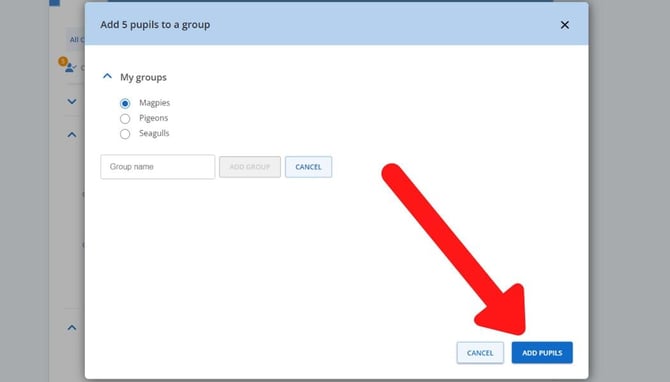
- You have now created a group! You can view all the groups in your school by clicking on the 'Groups' tab.